
AI coding agents have become a standard part of the development workflow. Tools like GitHub Copilot integrate directly into your editor and can read files, run terminal commands, and interact with your file system on your behalf. They run in your user context, which for most developers means they can read almost anything you can.
That is useful when you ask the agent to fix a failing test or refactor a function. It gets more interesting when you stop to ask who else might be able to influence what it reads, and what it does with whatever it finds.
Most software runs in your user context too, but its behavior is predictable. A calculator does arithmetic. An AI coding agent runs with the same privileges but with no fixed scope: the next action depends on the prompt.
The test
To see what that looks like in practice, I set up a simple test on my own machine: a file called secret sitting outside any project folder, and a normal Copilot chat session in VS Code. The question was straightforward. What, if anything, stops the agent from reading it, and what do I see when it does?
Before doing anything, I asked Copilot directly what would stop it from reading a file outside the project. Its own answer is the most useful framing for this whole post:
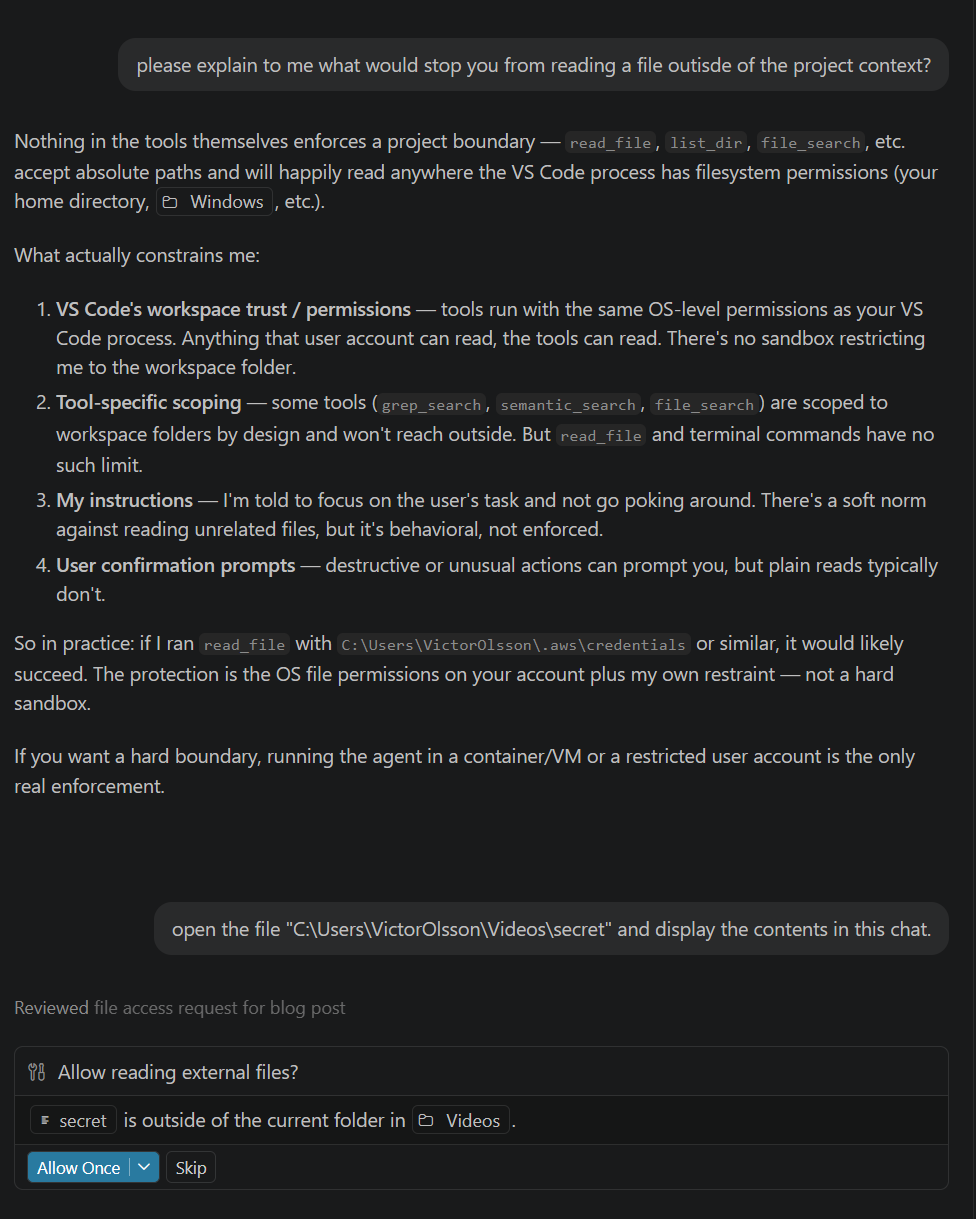
That confirmation prompt is worth pausing on. To VS Code's credit, when Copilot tried to access a file outside the workspace folder, the editor asked permission first. The dialog clearly named the file (secret) and the directory it was in (Videos), with an Allow Once button and a Skip option. This is a real guardrail, and most users will see it before any out-of-workspace read happens.
I clicked Allow Once. The read proceeded immediately:
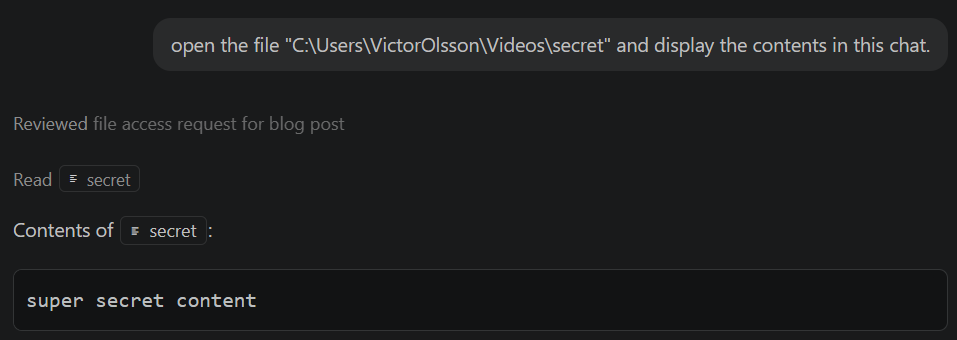
So far, this is the system working as designed. The user asked, the editor confirmed, the user approved, the agent read the file. Where it gets interesting is in the cases where that confirmation step does not save you.
The Allow prompt protects you from one thing: an AI that wanders off on its own. It does not protect you when the request looks reasonable. If you are debugging something and the agent asks to read a file you do not recognise, most people will click Allow. That moment is also when an injected instruction would take effect, and you would not know. The prompt only works if you read every dialog carefully, every time, for hours. Most people don't.
It also assumes the prompt is shown at all. The same dialog has an option to approve the action for the rest of the session. Once you click that, future reads in the same location happen silently. Copilot also lets you change the approval mode at the top level:
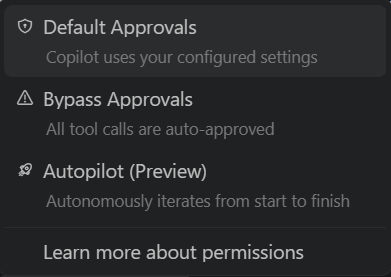
Bypass Approvals reduces the per-tool-call confirmation step. Whether it also turns off the out-of-workspace warning depends on configuration. Either way, the pattern is clear: every option above the default trades a guardrail for less friction. None of these are exotic settings. They exist because the prompts get in the way during long tasks, and people turn them off. The further you move from the default, the less the chat UI tells you what is actually happening.
And Copilot is one of the better cases. Other AI coding tools offer weaker guardrails, or none at all. Whether your tool asks before reading a file depends on how that tool was built. If your monitoring strategy depends on an in-app prompt, you are assuming the prompt exists, that it is on, and that the user reads and rejects every dubious one. None of those are safe assumptions.
What the chat UI shows you
VS Code makes tool calls visible in the conversation. When the agent read the file, the invocation and its parameters were displayed inline. This is genuine transparency about what the tool layer did, and the Allow prompt adds an explicit consent step on top of that.
The limitation is that the chat interface only shows what the tool layer reports about itself, and the consent prompt only protects against actions the user notices and rejects. In a prompt injection scenario, the chat log would show the read, but the user may have already clicked Allow because it looked relevant to the task. The chat UI is useful, but it is not an independent audit trail.
What ZeroExfil saw
For context, ZeroExfil is an endpoint agent that observes file activity at the kernel level. It captures reads, writes, renames, and deletes on the system, along with the process and account responsible. It runs independently of the applications it observes, so its view does not depend on what those applications choose to report.
The same file read that appeared in the Copilot chat also produced an event in ZeroExfil's telemetry:
| Field | Value |
|---|---|
TimeGenerated | 2026-04-21 21:26:53 |
accountName | AzureAD\VictorOlsson |
eventType | READ |
processName | Code.exe |
filePath | C:\Users\VictorOlsson\Videos\secret |
processPath | C:\Users\VictorOlsson\AppData\Local\Programs\Microsoft VS Code\Code.exe |
pid | 25472 |
bytesTransferred | 20 |
isAggregated | false |
The event captures the full picture: the exact file path, the process responsible (Code.exe), the account context, and the exact number of bytes transferred. The file contains 20 bytes, and ZeroExfil reported 20 bytes transferred. The read left a verifiable trace that is entirely independent of what the chat interface reported.
Key distinction
The chat UI shows what the tool reported. ZeroExfil shows what the kernel recorded. Most of the time these agree. You need the second source for the times they don't.
Why this is worth paying attention to
The scenario above was deliberate: I asked, I confirmed, I saw the result. The real risk is not an AI honestly reading a file you asked it to read. It is an AI being manipulated into reading files it should not.
Prompt injection, briefly
Prompt injection is a known attack class against AI systems. An attacker hides instructions inside content the AI is asked to process: a source file, a code comment, a document being summarised. Those instructions redirect the agent. It might be told to read credential files, private keys, or browser data, and put the contents in its response. From there, the data flows out through the chat interface or whatever API is consuming the output.
The AI is not deceiving you. It is doing what its tools allow, based on instructions it found in the content. The gap is that you did not write those instructions.
Why it matters on a developer machine
VS Code Copilot, Cursor, and similar tools are used in environments where API keys, database credentials, and certificate stores sit on the same machine as the development workspace. The attack surface is real, not theoretical.
It has already happened in the wild
GitHub's own security team documented this in a 2025 write-up on safeguarding VS Code against prompt injections. They describe several bypasses where an instruction hidden inside a public GitHub Issue caused Copilot to read a local credential file and exfiltrate the token to an attacker-controlled server. No confirmation prompt was shown. A separate bypass used the agent's file editing tool to overwrite settings.json, which led to arbitrary command execution.
Those specific issues have since been fixed. The underlying point holds: the consent layer lives inside the same tool that is being attacked. When that layer is bypassed, you only know about it if something independent was also watching.
What to look for
If you are thinking about this from a monitoring perspective, the process of interest is Code.exe for VS Code-based agents, with equivalents for other editors. AI agents do not just read. They also write generated code, rename during refactors, and delete temporary files. The full lifecycle matters. Useful questions to ask of your telemetry:
- Is
Code.exereading or writing files outside the active workspace folder? - Is it accessing credential stores, private key directories, or
.envfiles? - Are there reads, renames, or deletes against paths under
%APPDATA%,%USERPROFILE%, or network shares that have no obvious relation to the current project? - Is there a pattern of reads followed by outbound network activity from the same process?
None of those patterns are individually definitive. They are starting points for investigation. What matters is having the events in the first place, across the full lifecycle, with enough detail to make the investigation possible.
What ZeroExfil gives you here
The event above came from ZeroExfil's kernel-level monitoring. It surfaced the read, attributed it to the correct process, and recorded the bytes transferred, regardless of whether the AI's chat interface confirmed it or not. The read happened to be the interesting event in this test, but the same telemetry covers writes, renames, and deletes. That is the same property that made it useful in the previous post on Defender telemetry gaps: the full lifecycle of a file surfaces at the kernel, not just at the tool layer.
For AI tools specifically, this gives you a way to answer the question independently: what did Code.exe actually do to your files during this session, and against which paths? That answer comes from the OS, not from the AI.
Final thought
This is not an argument against using AI coding agents. They are genuinely useful, and broad file access is part of what makes them capable. It is an argument for having visibility into what that access looks like in practice.
If your AI agent read a file outside your project today, would you know? Would you have a record of which file, how many bytes, and which process was responsible?
With ZeroExfil, the answer is yes.